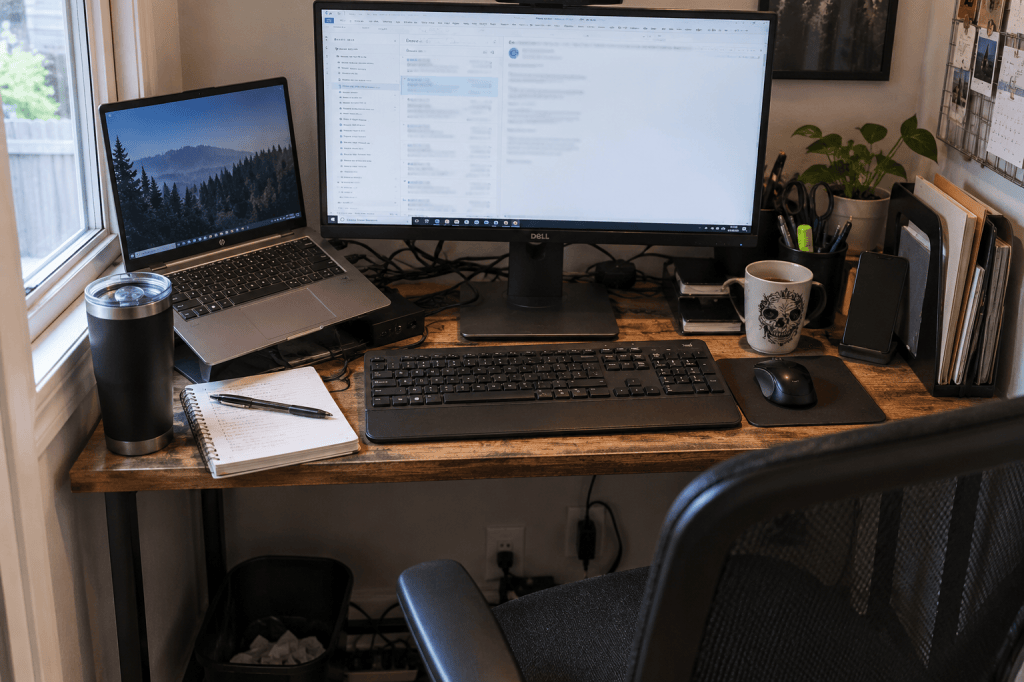
A small desk can feel impossibly cramped even when, technically, it should be big enough.
Your keyboard is pushed toward the front edge. Your notebook keeps getting moved. Your laptop is wedged beside the monitor. Chargers and cables have claimed whatever surface was left.
So the obvious conclusion is:
I need a bigger desk.
Maybe.
But before you replace it, look at the biggest object sitting on it.
Your monitor might be stealing more usable workspace than you realize.
The problem isn’t necessarily the size of the screen. It’s the entire footprint created by the monitor stand, its position, your laptop, cables, docks and everything else required to make the setup work.
Before giving a bigger desk more of your limited floor space, figure out whether the desk itself is actually the problem.
The Monitor Footprint Nobody Thinks About
When we think about monitor size, we usually think about the screen.
A 24-inch monitor. A 27-inch monitor. An ultrawide.
But screen size isn’t the same thing as desk footprint.
Look underneath your monitor.
The stand may extend surprisingly far forward or backward. A wide base can consume space that could otherwise hold a notebook, keyboard or other things you actually need while working.
Then add everything surrounding it:
- Your laptop.
- A docking station.
- Charging cables.
- Power adapters.
- Speakers.
- Webcam accessories.
Suddenly a significant portion of your desk isn’t really available anymore.
That’s the footprint that matters.
Signs Your Monitor Setup Might Be the Problem
You don’t need to measure every inch of your desk to recognize a bad setup.
Look for the everyday annoyances.
- Does your keyboard sit uncomfortably close to the front edge?
- Do you have to move your keyboard whenever you want to write something?
- Is your laptop squeezed beside the monitor because there’s nowhere else for it to go?
- Are cables, chargers and adapters filling the area behind or beside your screen?
- Do you constantly move objects from one side of the desk to another depending on what you’re doing?
- Does the desk look reasonably sized when it’s empty but immediately feel tiny once your equipment returns?
Those are clues.
The goal isn’t to create an empty desk.
It’s to create enough usable surface for the work you actually do.
Do the Footprint Test
Before buying anything, remove the assumption that your desk is too small.
Look at everything currently occupying it and ask:
How much space does this item take up compared with how much value it provides?
For your monitor setup specifically, check:
- The stand: How much depth and width does the base consume?
- The keyboard: Can it sit where your hands naturally need it?
- The laptop: Does it need to stay open on the desk all day?
- The work zone: Is there somewhere comfortable to write, read or work with something that isn’t a keyboard?
- The cables: Are they using valuable surface because they don’t have anywhere else to go?
- The accessories: Which things genuinely need to live within arm’s reach?
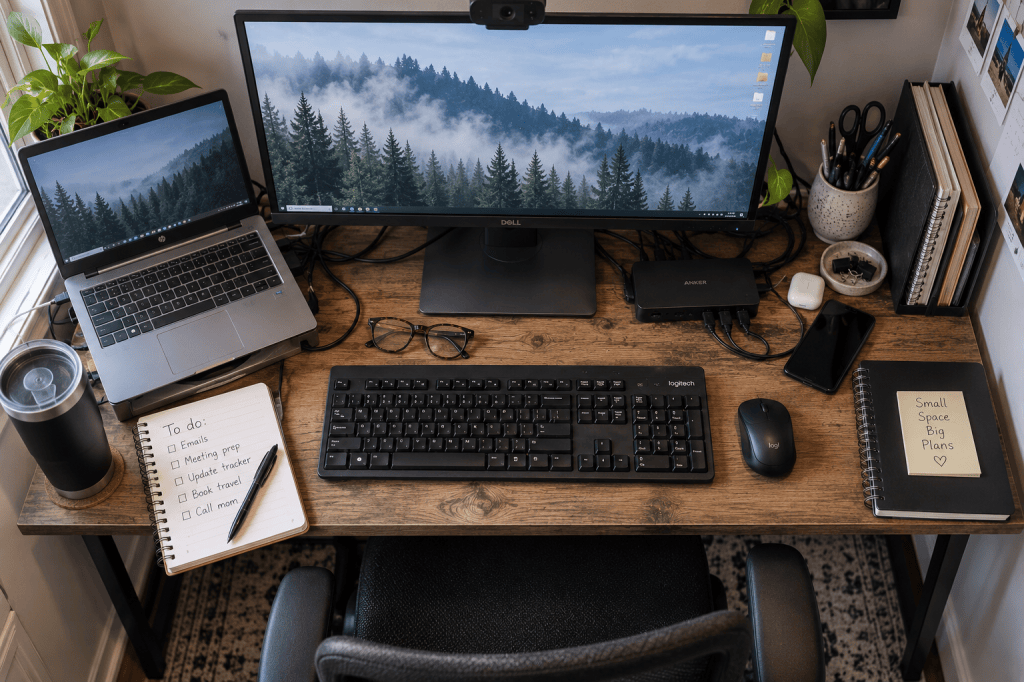
You may discover that you don’t need more desk.
You need less stuff occupying the desk you already have.
Option 1: Change the Monitor Position
Start with the free solution.
Before ordering a monitor arm, riser or new desk, experiment with the equipment you already own.
Try moving the monitor farther back if the desk allows it.
Shift it slightly to one side if that creates a more useful work zone.
Move accessories that don’t need to sit beside it.
Relocate your laptop temporarily and see how much usable surface returns.
You aren’t trying to create the prettiest setup yet.
You’re testing a hypothesis:
If the monitor footprint changes, does the desk suddenly work better?
If the answer is yes, you’ve learned something important before spending a dollar.
Option 2: Use a Monitor Riser
A monitor riser can help, but it’s important to understand what problem it actually solves.
A riser lifts the monitor and creates usable space underneath it.
That can give smaller items, notebooks or even a keyboard somewhere to go when they aren’t being used.
But a riser doesn’t necessarily eliminate the monitor’s footprint.
The stand still exists. The riser itself also occupies desk space.
So don’t automatically assume adding another object will create more room.
Ask whether the space underneath the riser will genuinely be useful enough to justify the space the riser occupies.
If it does, great. It earns its place.
Option 3: Consider a Monitor Arm
If the monitor stand is consuming a significant amount of usable desk depth, a monitor arm can potentially make a much bigger difference.
Instead of supporting the monitor with a large base sitting on the work surface, many monitor arms attach near the edge of the desk.
That can free a substantial portion of the surface underneath the screen.
But don’t buy one just because monitor arms look wonderfully clean in desk-setup photos.
Check compatibility first.
- Can your monitor attach to an arm?
- Can your desk safely support the mounting method?
- Is there enough clearance underneath the desk for a clamp?
- Is the desktop material suitable?
- Is there enough space behind the desk for the arm to move?
- Will the monitor sit at a comfortable height and distance once installed?
A space-saving product that doesn’t work with your actual desk has failed the Worth the Space test before it even arrives.
Not sure whether a monitor arm will actually work with your desk? Desk thickness, edges, aprons, mounting access and clearance can all affect whether an arm is a good fit. Check whether a monitor arm will work with your desk before you buy one.
Option 4: Decide Where Your Laptop Actually Belongs
A monitor plus a laptop can quickly turn one workstation into two competing workstations.
So decide what job the laptop is doing.
If you actively use its screen throughout the day, it may make sense to raise it beside the monitor so both screens form one functional setup.
If you mostly use the external monitor, the laptop may not need to remain open beside it.
A vertical stand can reduce the laptop’s footprint when the computer is being used in closed-lid mode, provided your particular laptop and setup support that use.
Or perhaps the laptop simply needs a designated place away from the main work zone when you aren’t using its screen.
The important part isn’t achieving a particular aesthetic.
It’s deciding intentionally where the laptop belongs instead of letting it occupy whatever space happens to be available.
Option 5: Get Cables, Chargers and Docks Out of the Work Zone
Sometimes the monitor isn’t working alone.
There’s an entire supporting cast stealing space with it.
- Charging bricks.
- USB hubs.
- Docking stations.
- Phone chargers.
- Power bars.
- Loose cables.
You may need some of them within reach.
You probably don’t need all of them sitting in the middle of your usable work surface.
Look for opportunities to route cables toward the back or underside of the desk, create one intentional charging location and move equipment that doesn’t require frequent access away from the primary work zone.
A few inches reclaimed in several places can completely change how a small desk functions.
Protect a Clear Work Zone
Once you’ve reclaimed some surface, don’t immediately fill it again.
Choose part of the desk that has one very important job: being available.
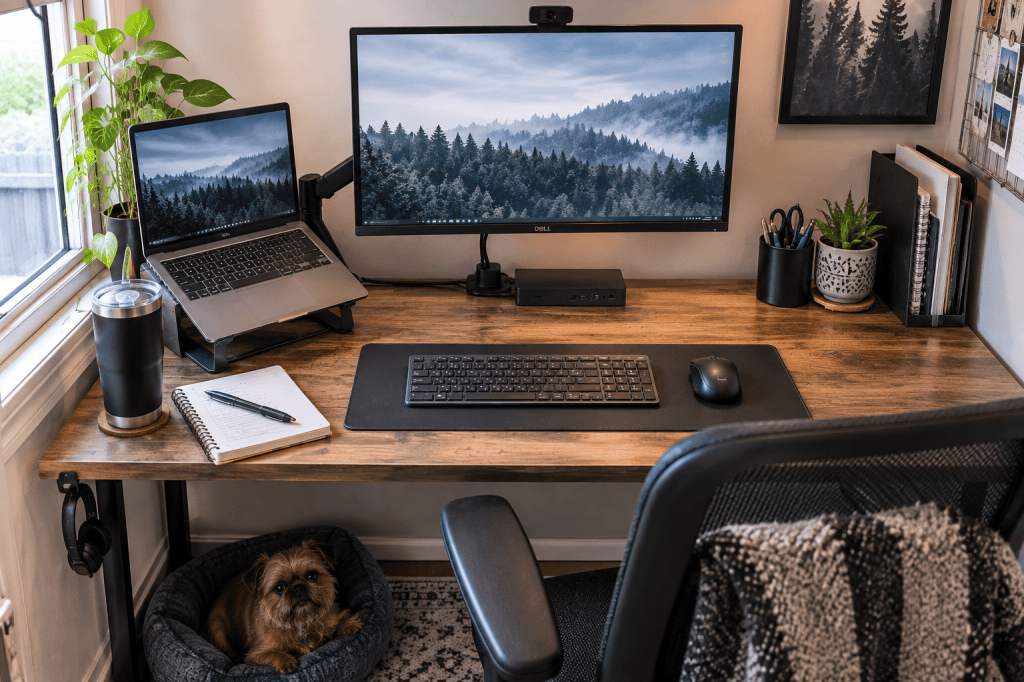
That might be the space directly in front of you or an area beside your keyboard.
It’s where a notebook can open. Where a document can sit. Where you can put down a coffee without rearranging six other things first.
It’s where today’s work can actually happen.
Empty space isn’t wasted space when the purpose of that space is flexibility.
On a small desk, that flexibility is valuable.
Before You Buy Anything
Try the free changes first.
- Move the monitor.
- Temporarily relocate the laptop.
- Remove the accessories you rarely touch.
- Get unnecessary cables off the work surface.
- Protect a clear working area.
Then use the desk normally for a few days.
Pay attention to what still annoys you.
If the monitor stand is still the obvious problem, then a monitor arm or different setup may be worth considering.
If you still don’t have enough working depth, the desk itself may genuinely be too shallow.
If equipment keeps returning to the surface because there’s nowhere else for it to live, you may have a storage problem.
That’s useful information.
Because now you’re solving the actual problem instead of guessing.
Your Desk Doesn’t Need to Look Empty
A functional desk isn’t necessarily minimalist.

It can have a coffee mug. A notebook. Pens. A lamp. A photograph you like.
Even a completely unreasonable number of sticky notes.
The question isn’t whether something makes the desk look perfectly tidy.
The question is whether everything occupying that limited surface is earning the space it takes.
Your monitor absolutely might.
Its giant stand, three chargers, abandoned dock and cable spaghetti?
Maybe not.
Before buying a bigger desk, find out what’s actually making the one you have feel too small.
Because sometimes the best way to gain more workspace isn’t adding more space.
It’s reclaiming the space that was already there.
If something takes up limited space, it should earn its place.


Leave a Reply